 USD
USD EUR
EUR GBP
GBP CAD
CAD AUD
AUD HKD
HKD JPY
JPY KRW
KRW SGD
SGD NZD
NZD THB
THB TWD
TWD 繁體中文
繁體中文 日本語
日本語 한국어
한국어 English
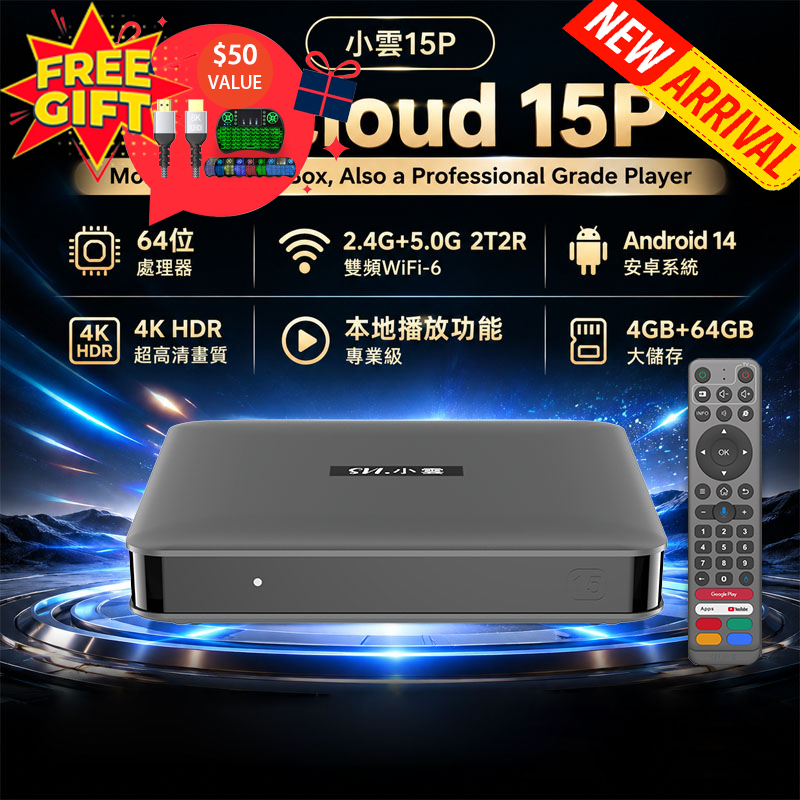


How to Set Up a Smart TV Box?
Setting up a Smart TV Box is quick and easy. Most Android TV boxes—including EVPAD, Unblock Tech, SviCloud, DIGIBOX, and GetMax—follow the same basic setup process. In just a few minutes, you’ll be ready to enjoy HD live TV, movies, sports, and streaming apps.
Step 1: Hardware Connections
▶ Connect one end of an HDMI cable to the HDMI port on the back of the TV box.
▶ Connect the other end to an available HDMI port on your TV (for example, HDMI 1 or HDMI 2).

Power Supply
▶ Plug the power adapter into the TV box.
▶Connect it to a wall outlet.
Most TV boxes will power on automatically.

Remote Control
▶ Insert batteries into the remote control.
▶ Some models use Bluetooth remotes. If prompted on-screen, follow the instructions to pair the remote with the TV box.

Step 2: Select the Correct TV Input
▶️ Turn on your TV.
▶️ Press the Input / Source button on your TV remote.
▶️ The Android welcome screen should appear and you can go to the Homepage

Step 3: Initial Software Configuration
➡️Choose your preferred language (English is recommended for U.S. users).Select your region if prompted.
➡️Internet Connection (Required)
Select your Wi-Fi network.
Enter the password using the on-screen keyboard.
Ethernet (Recommended)
Connect an Ethernet cable from your router directly to the TV box.
Provides faster and more stable streaming, especially for HD and 6K content.


Step 4: Install Apps from the App Store or from web browser on the TV box
Each brand includes its own official App Store.
Open the App Store on your TV box.
Browse or search for apps you want to install.
⚠️ App availability and features may vary by brand and region.

Step 5: Watching Live TV & On-Demand Content
Open your installed Live TV or Video apps.
Follow in-app instructions to load channels, VOD libraries, or playlists.
Content options depend on the apps you choose to install.

Adult (18+) Content Notice
Some Android TV boxes support age-restricted (18+) applications provided by third-party developers.
Access to adult apps may require age verification or a password.

Step 6: System Updates (Highly Recommended)
Keeping your TV box updated improves performance and security.
✅Go to Settings > About > System Update
✅Download and install available updates
✅Restart the device if prompted
Helpful Setup Tips
Faster Typing
▶️ Plug in a USB or wireless keyboard for easier searching and login.
▶️ Many users also prefer a mini keyboard with touchpad.
Display Optimization
▶️ Go to Settings > Display
▶️ Set resolution to Auto, 1080p, or 8K (depending on your TV)
Better Streaming Performance
▶️ Use Ethernet instead of Wi-Fi when possible
▶️ Close unused background apps
▶️ Restart the device occasionally
Contact Us
If you have questions about setup, compatibility, or choosing the right TV box:


