
 KRW
KRW USD
USD EUR
EUR GBP
GBP CAD
CAD AUD
AUD HKD
HKD JPY
JPY SGD
SGD NZD
NZD THB
THB TWD
TWD 繁體中文
繁體中文 日本語
日本語 한국어
한국어 English




How to Set Up DIGIBox D6 Max: Complete Installation & User Guide (2026)?

Setting up a DIGIBox D6 Max is quick and easy, even if you've never used an Android TV box before. Within just a few minutes, you can access thousands of live TV channels, movies, sports, news, and on-demand content from around the world.
In this complete guide, we'll walk you through everything you need to know about setting up your DIGIBox D6 Max, installing apps, connecting to the internet, using voice search, and getting the most out of your streaming experience.
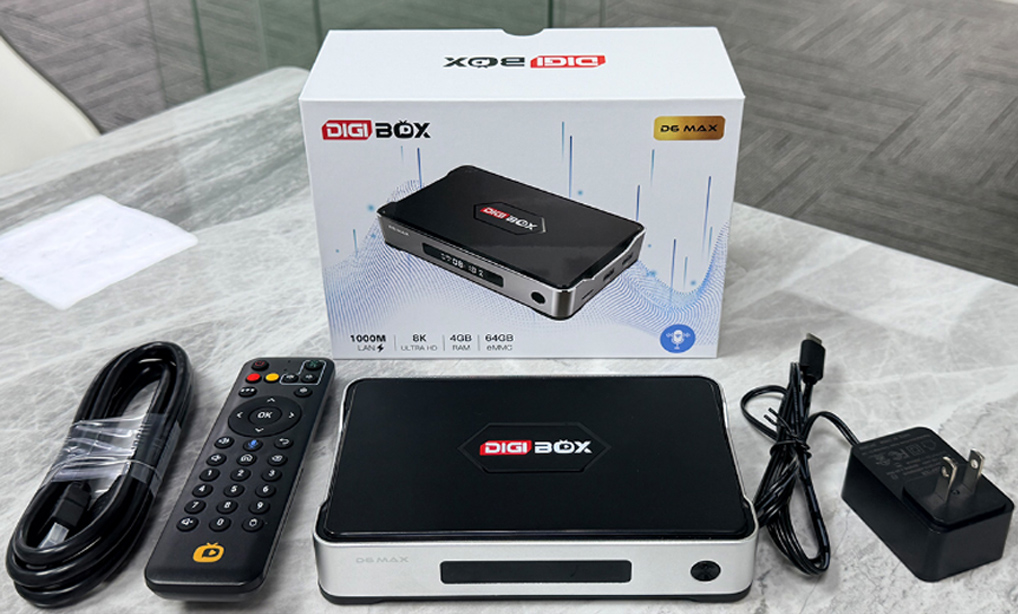
What's Included in the DIGIBox D6 Max Package?
Before you begin, make sure all accessories are included in the box:
✅DIGIBox D6 Max TV Box✅Bluetooth Remote Control
✅HDMI Cable
✅Power Adapter
✅User Manual
Once everything is ready, follow the steps below.
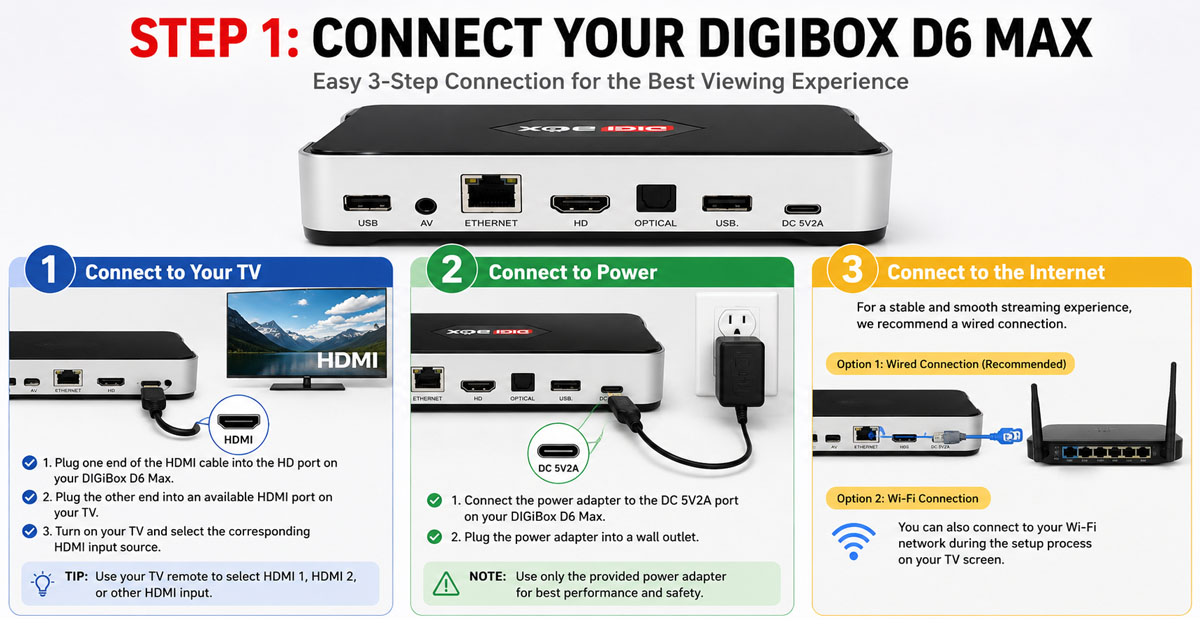
Step 1: Connect Your DIGIBox D6 Max
Connect to Your TV
- Plug one end of the HDMI cable into the DIGIBox.
- Connect the other end to an available HDMI port on your TV.
Connect to Power
- Connect the power adapter to the DC IN port on the DIGIBox.
- Plug the adapter into a wall outlet.
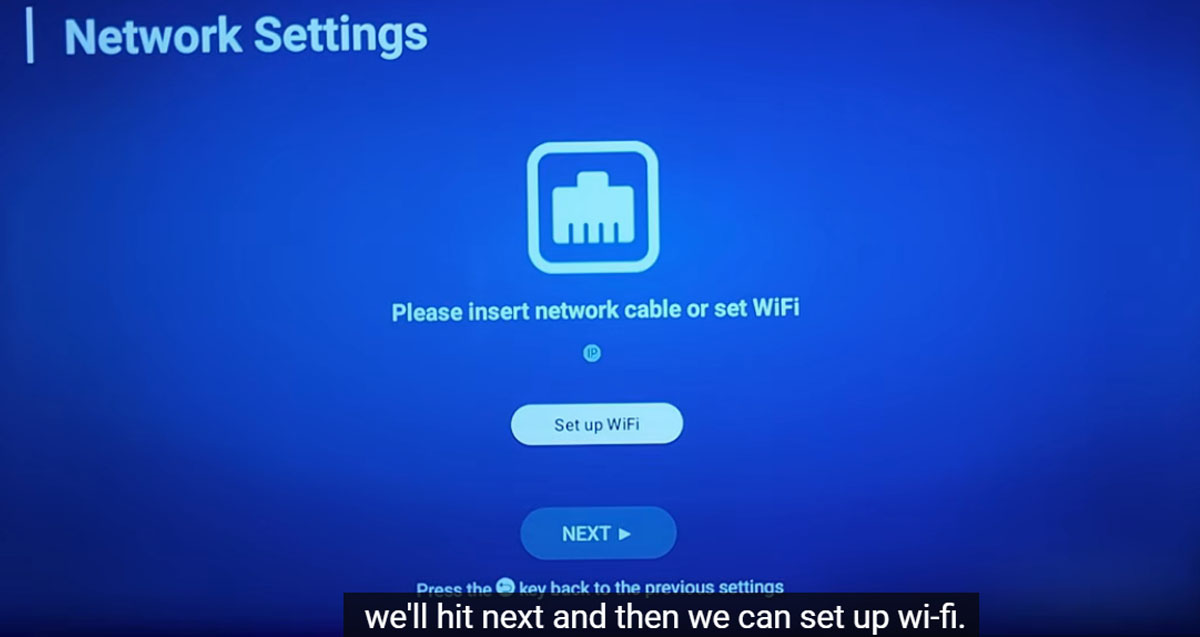
Connect to the Internet
For the most stable streaming experience, connect an Ethernet cable directly from your router to the DIGIBox.
Alternatively, you can connect to Wi-Fi during the setup process.
Turn On Your TV
Use your TV remote control to select the HDMI input connected to your DIGIBox (HDMI 1, HDMI 2, etc.).
The DIGIBox startup screen will appear shortly.
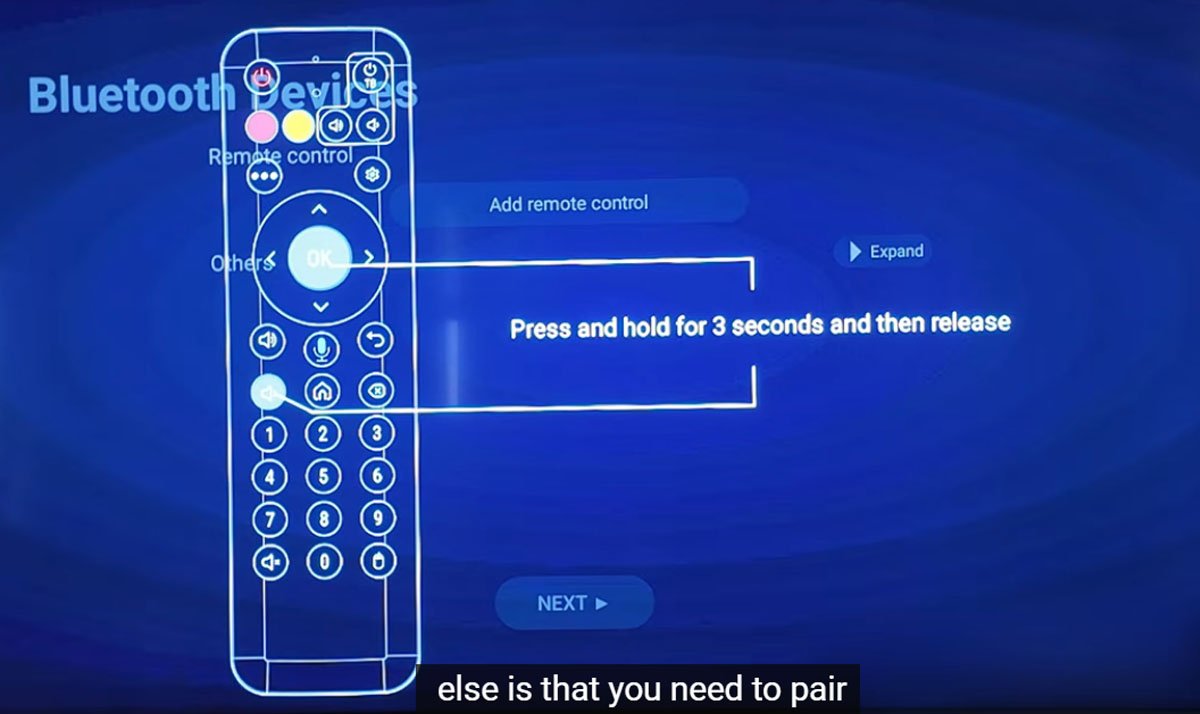
Step 2: Pair the Bluetooth Remote Control
To ensure smooth navigation and voice search functionality, pair the Bluetooth remote control.
How to Pair the Remote
- Press and hold the OK and Volume Down (-) buttons simultaneously.
- Hold for approximately 3 seconds.
- Release the buttons when the indicator light flashes.
Your remote should now be successfully paired with the DIGIBox.
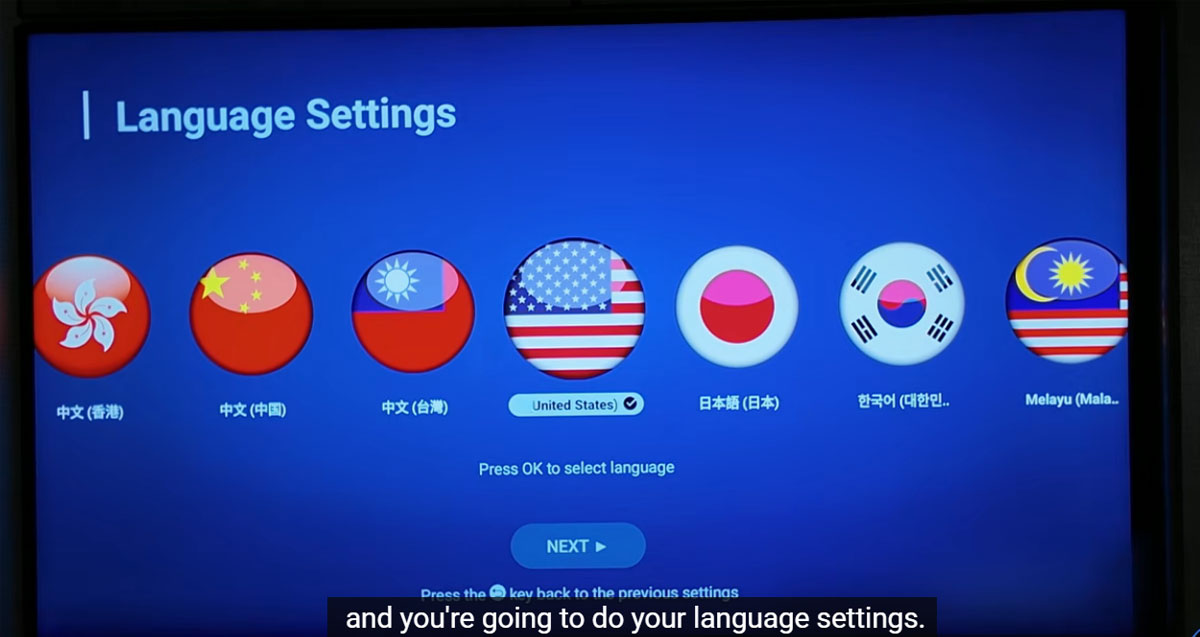
Step 3: Select Language and Region
DIGIBox supports multiple languages, including:
- English
- Chinese
- French
- German
- Spanish
- Japanese
- Korean
- And more
Use the remote control to select your preferred language and time zone.
Step 4: Connect to Wi-Fi
If you are not using a wired Ethernet connection:
- Select your Wi-Fi network from the list.
- Enter your Wi-Fi password.
- Wait for the connection to complete.
After connecting, you may be asked to accept a disclaimer or user agreement.
Once confirmed, the setup process will continue automatically.
Step 5: Explore the Settings Interface
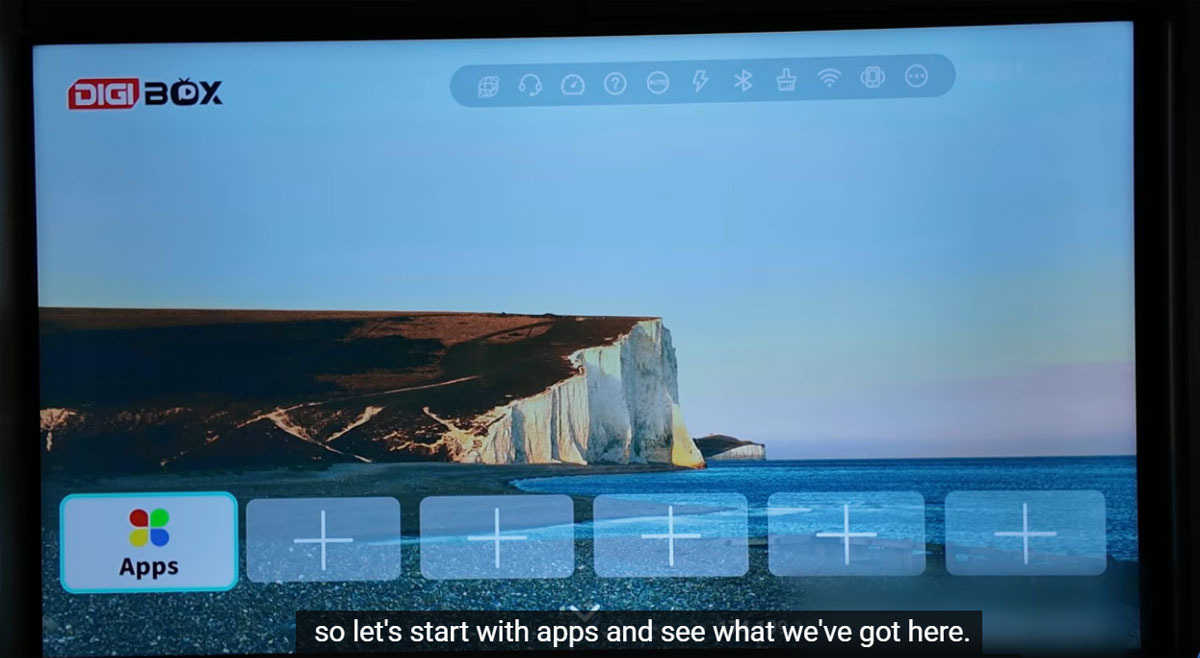
After the initial setup, you'll arrive at the DIGIBox home screen.
The settings menu provides access to:
- Online Support
- Network Speed Test
- User Guide
- Device Management
- Quick Settings
- Bluetooth Devices
- Storage Management
- System Information
This area allows you to customize your DIGIBox and troubleshoot common issues.
Step 6: Install Essential Apps
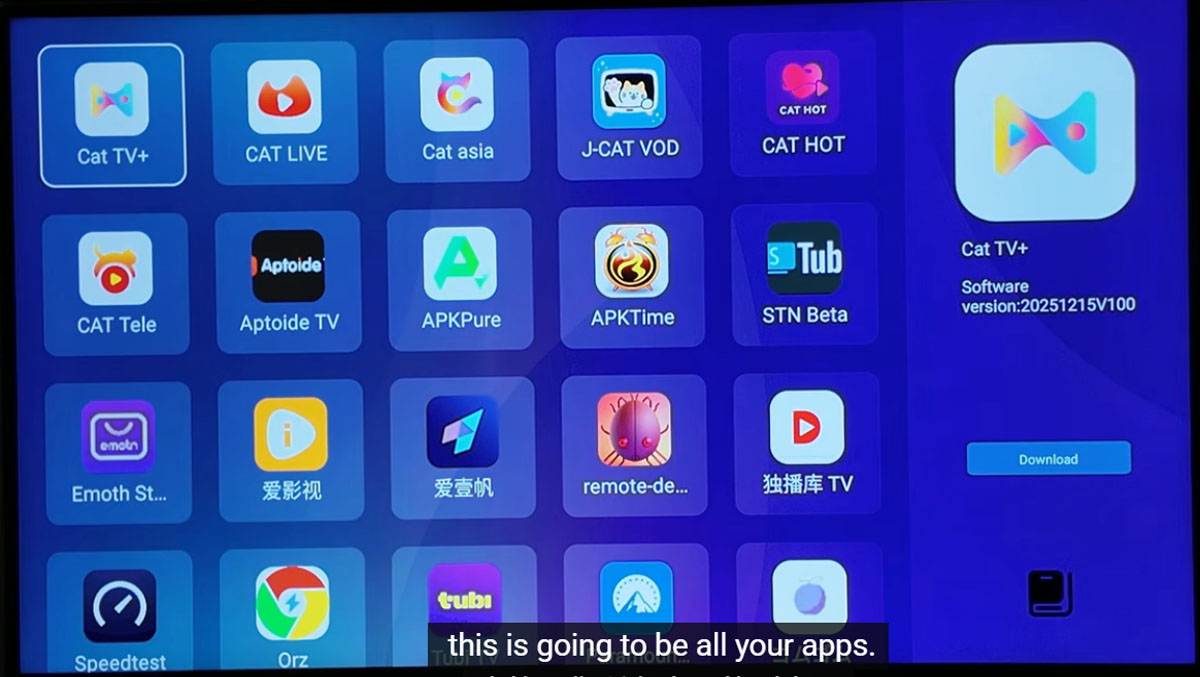
DIGIBox comes with several popular streaming applications available through its App Store.
Recommended Apps
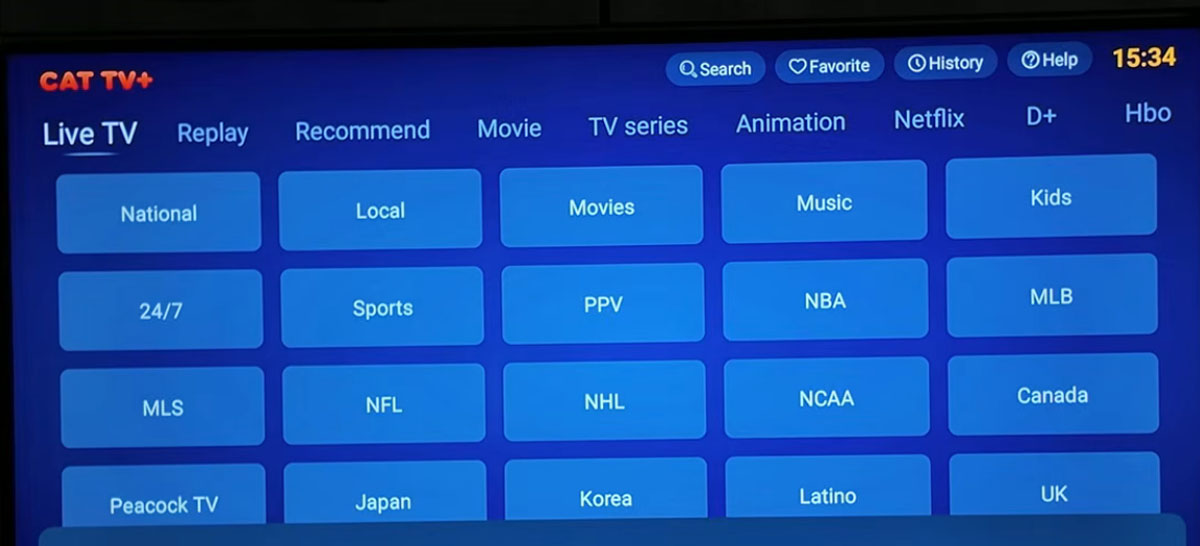
CAT TV
Watch thousands of international live TV channels, including:
- USA Channels
- Canada Channels
- UK Channels
- Sports Networks
- News Channels
- Entertainment Channels
CAT VOD
Enjoy a massive library of:
- Movies
- TV Shows
- Documentaries
- Anime
- Drama Series
CAT BACK
Access up to 7 days of playback for previously aired television programs.
Koala TV
Watch a wide variety of Asian channels from:
- Taiwan
- Hong Kong
- China
- Japan
- Korea
- Southeast Asia
CAT HOT
Adult content section protected by password access.
Additional Apps
You can also install apps from:
- Google Play Store
- APK files via USB drive
- Third-party Android app sources
Since DIGIBox uses an open Android operating system, users have flexibility to install compatible applications.
Step 7: Start Streaming
Once your apps are installed, you're ready to enjoy unlimited entertainment.
Watch Live TV
Open CAT TV and browse channels by category:
- Sports
- News
- Movies
- Kids
- International Content
Watch Movies and TV Shows
Open CAT VOD to access thousands of titles on demand.
Many titles feature:
- Blu-ray Quality Video
- Multi-language Audio
- Dolby Sound Support
- Multiple Subtitle Options
Catch Up on Missed Programs
Use CAT BACK to watch programs from the previous 7 days.
Step 8: Use DIGIBox Voice Search
One of the most powerful features of DIGIBox D6 Max is its built-in voice search capability.
Voice Search in CAT VOD
Simply:
- Press and hold the voice button.
- Speak the movie or show title.
- Release the button.
DIGIBox will quickly display matching results.
You can also search by:
- Genre
- Country
- Release Year
- Actor
- Director
Voice search supports multiple languages for greater convenience.
Voice Search in CAT TV
Switching channels is even easier.
- Enter the live TV section.
- Press and hold the voice button.
- Say the channel name.
DIGIBox will automatically locate and switch to the desired channel.
No typing required.
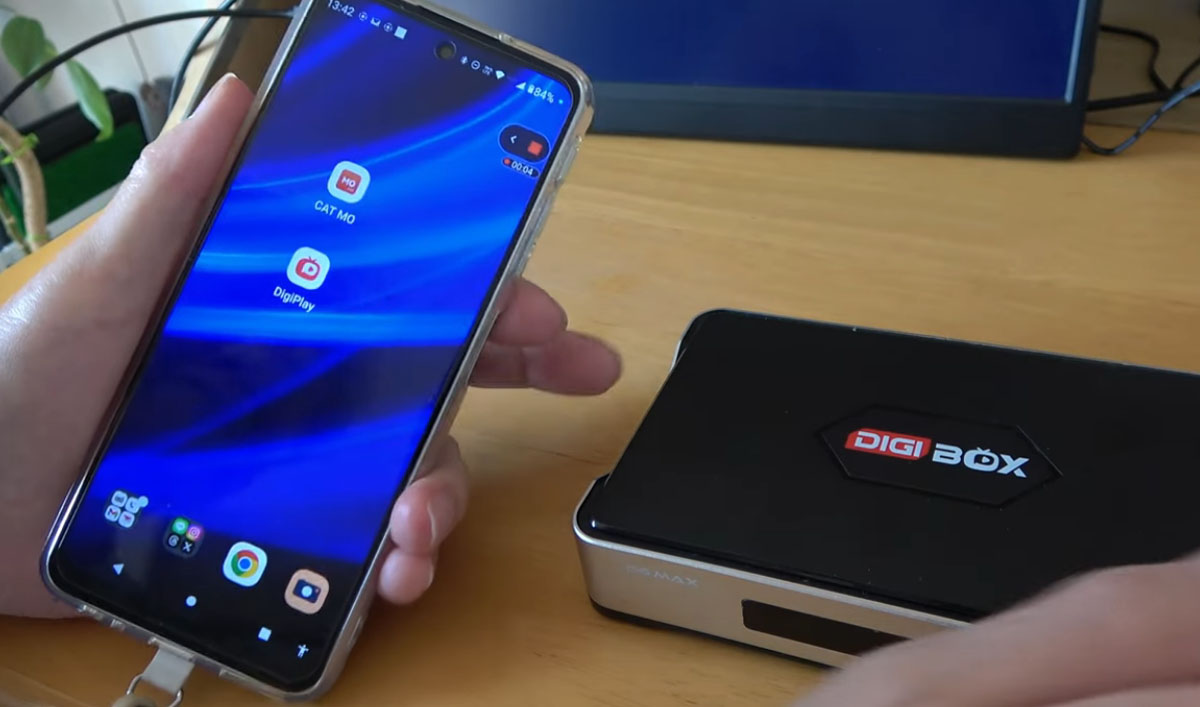
Step 9: Download the DIGIBox Mobile App
DIGIBox also offers a companion mobile application for Android devices.
Benefits include:
- Watch live TV on your phone
- Stream movies anywhere
- Access sports while traveling
- Continue watching away from home
This makes DIGIBox a complete entertainment solution both at home and on the go.
Step 10: Program the DIGIBox Remote Control
Many DIGIBox remotes can learn basic TV functions such as:
- TV Power
- Volume Up
- Volume Down
- Mute
How to Program the Remote
- Place the DIGIBox remote and TV remote facing each other.
- Press and hold the Power button on the DIGIBox remote until the LED remains solid.
- Press the button you want to program.
- Press the corresponding button on the TV remote.
- Wait for the LED to flash and confirm learning.
Repeat for additional buttons as needed.
This allows you to control both devices using a single remote.
The DIGIBox D6 Max offers one of the easiest setup experiences available in today's Android TV box market. With Bluetooth voice control, thousands of live TV channels, massive VOD libraries, 7-day playback, and flexible app installation options, it provides a complete entertainment solution for users worldwide.
Whether you're interested in sports, movies, international TV channels, or on-demand content, the DIGIBox D6 Max can be fully configured and ready to stream in just a few minutes.
Follow the steps in this guide, and you'll be enjoying your favorite content in no time.


