 USD
USD EUR
EUR GBP
GBP CAD
CAD AUD
AUD HKD
HKD JPY
JPY KRW
KRW SGD
SGD NZD
NZD THB
THB TWD
TWD 繁體中文
繁體中文 日本語
日本語 한국어
한국어 English
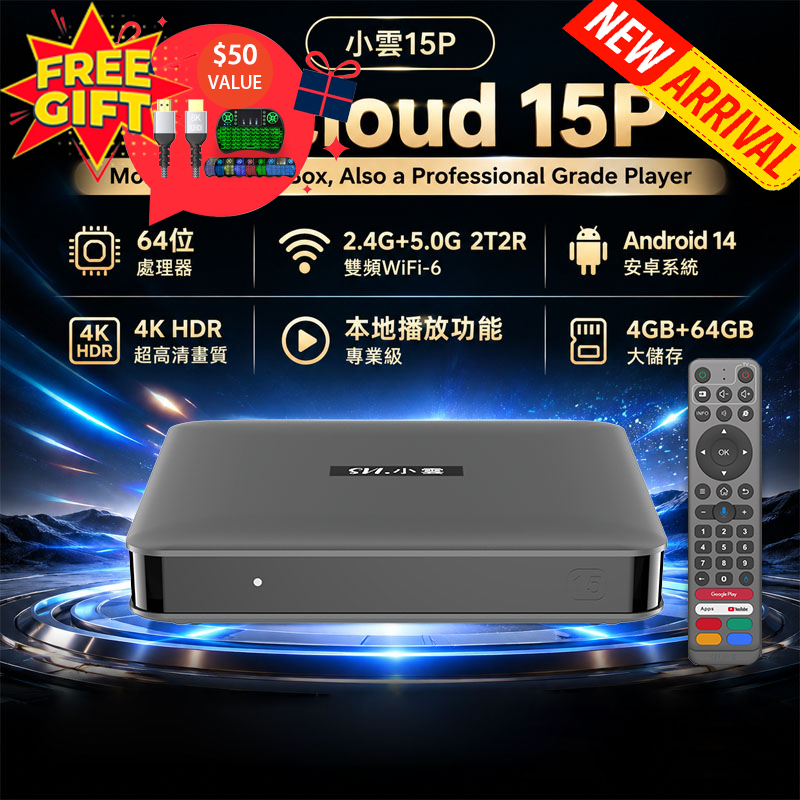


Complete Guide: How to Set Up and Install Apps on the GetMax G12 TV Box?

Streaming technology has completely changed the way people enjoy entertainment at home. Instead of paying expensive monthly cable bills, more users are turning to Android TV boxes for a smarter and more flexible viewing experience. Among the many options available today, the GetMax TV Box has become increasingly popular because of its powerful performance, user-friendly interface, and access to a huge variety of entertainment apps.
Whether you enjoy live TV, blockbuster movies, international channels, sports, kids’ programs, or on-demand streaming, the GetMax TV Box gives you everything in one place. Even better, installing apps is simple and only takes a few minutes.
In this guide, we’ll walk you through the complete process of downloading and installing apps on your GetMax TV Box, even if you’re a beginner.
Why Choose GetMax TV Box?
The GetMax TV Box is designed for users who want a smooth and convenient streaming experience. Compared with traditional cable TV, it offers several major advantages:
➡️Access to global live TV channels➡️Thousands of movies and TV series
➡️Fast Android operating system
➡️Easy app installation
➡️User-friendly interface
➡️High-definition streaming quality
➡️Support for Wi-Fi and wired internet connections
With the right apps installed, your TV can become a complete home entertainment center.
Step-by-Step Guide to Download Apps on GetMax TV Box
Step 1: Turn On the Device and Connect to the Internet
First, connect your GetMax TV Box to your television using the HDMI cable provided. Then power on the device.
Before downloading any apps, make sure your TV box is connected to the internet. You can connect through:
➡️Wi-Fi connection➡️Ethernet wired connection
A stable internet connection ensures faster downloads and smoother streaming performance.
Once connected, you’re ready for the next step.
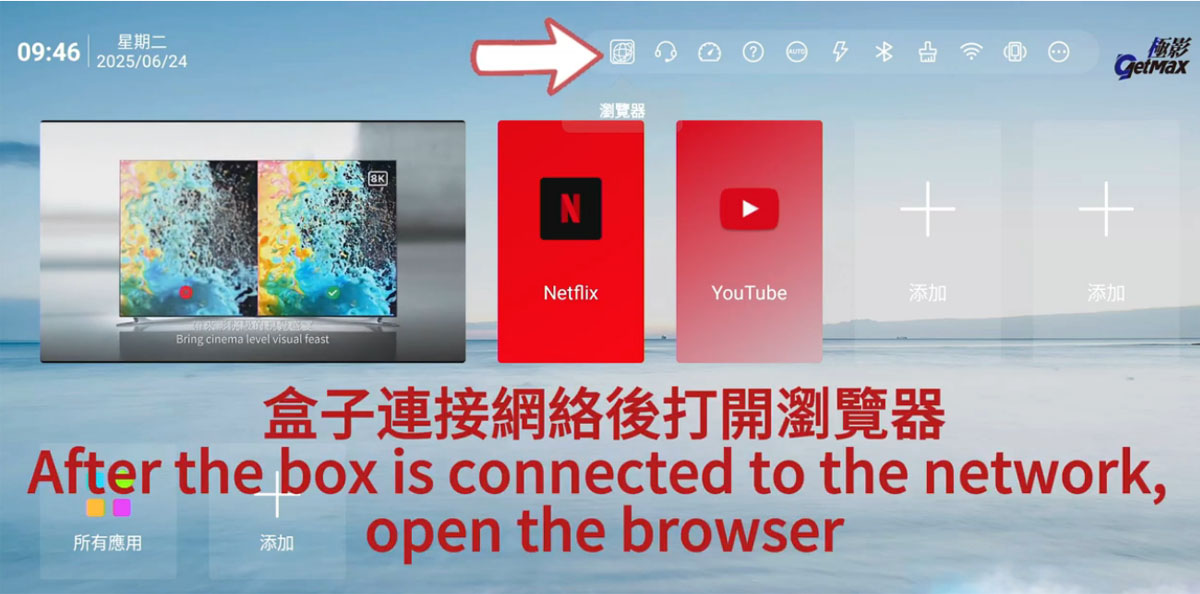
Step 2: Open the Browser App
From the GetMax home screen, locate the built-in Browser application.
The browser allows you to access the official download website for the GetMax App Store. Simply click the browser icon using your remote control to open it.
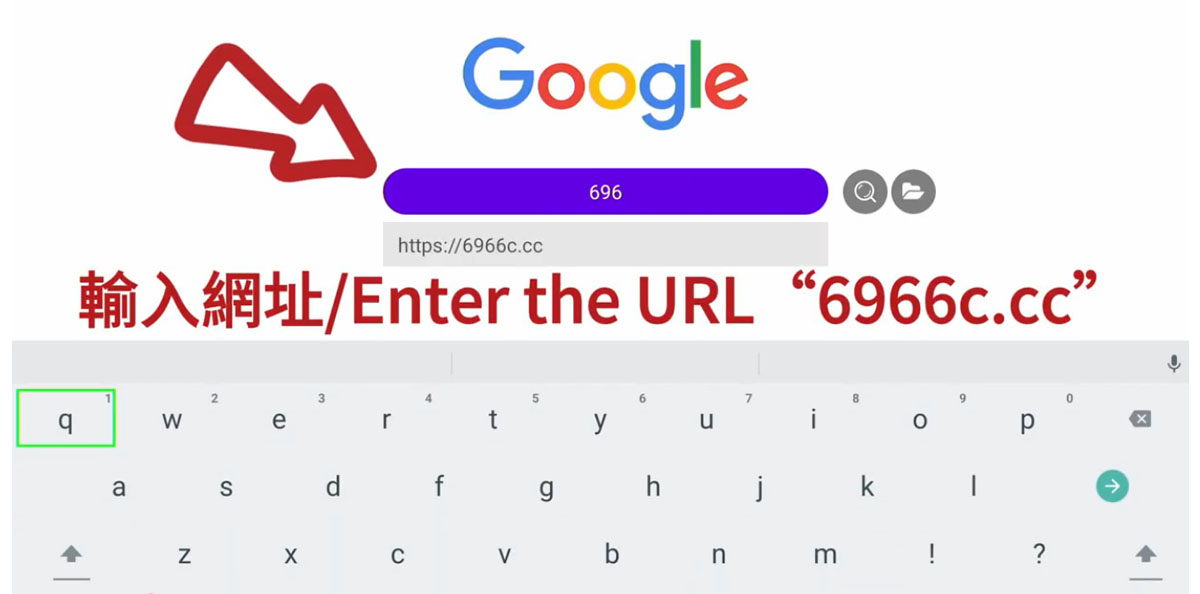
Step 3: Enter the Official Download Website
In the browser address bar, type the following URL: 6966c.cc
Then press the enter button on your remote.
The website will load automatically and provide access to the official GetMax App Store download page.
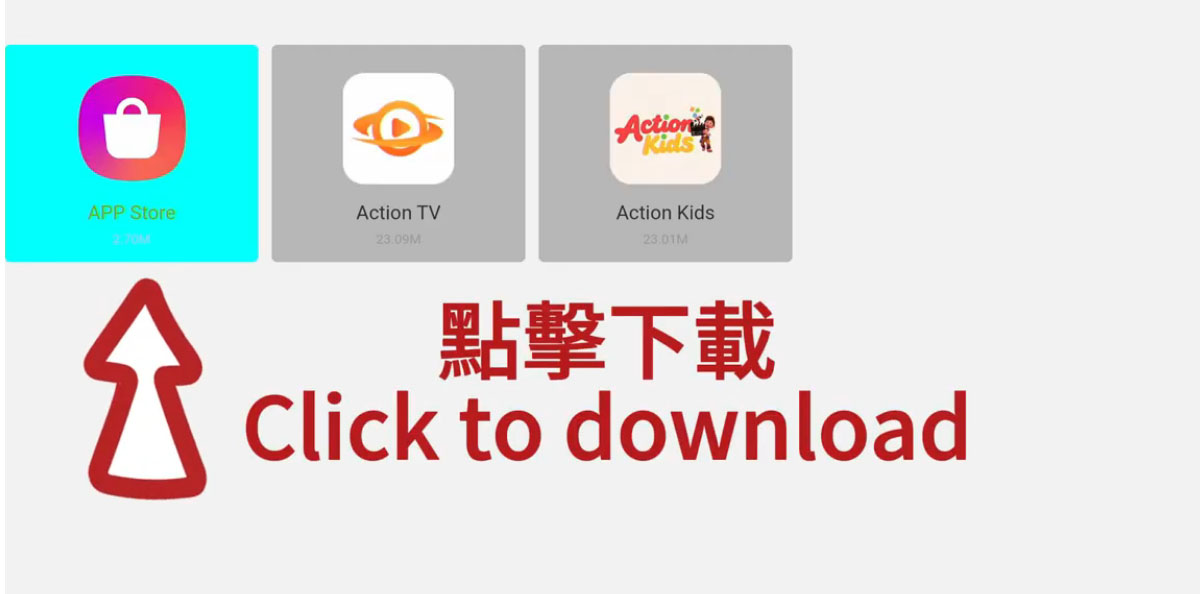
Step 4: Download and Install the GetMax App Store
After entering the website, you’ll see an option labeled: “Download App Store” Click this button.
The system will automatically begin downloading the official GetMax App Store installation package. Once the download is complete, follow the on-screen instructions to install it.
The installation process usually takes less than a minute.
After installation finishes, you’ll now have access to a wide range of streaming and entertainment apps.
Step 5: Add the App Store to Your Home Screen
For easier access in the future, it’s recommended to pin the App Store directly to your home screen.
Here’s how:
- Return to the main home screen
- Select the “Add” option
- Choose the newly installed App Store
- Confirm placement
Now the App Store will always appear on your main interface, allowing you to quickly download or update apps anytime.
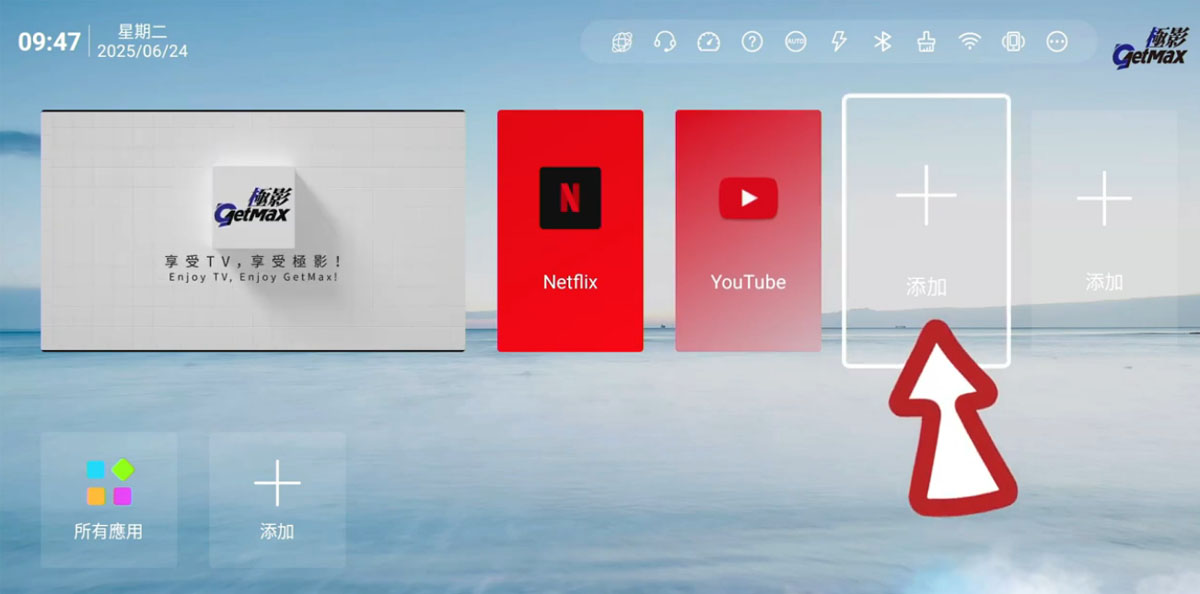
Step 6: Download Your Favorite Entertainment Apps
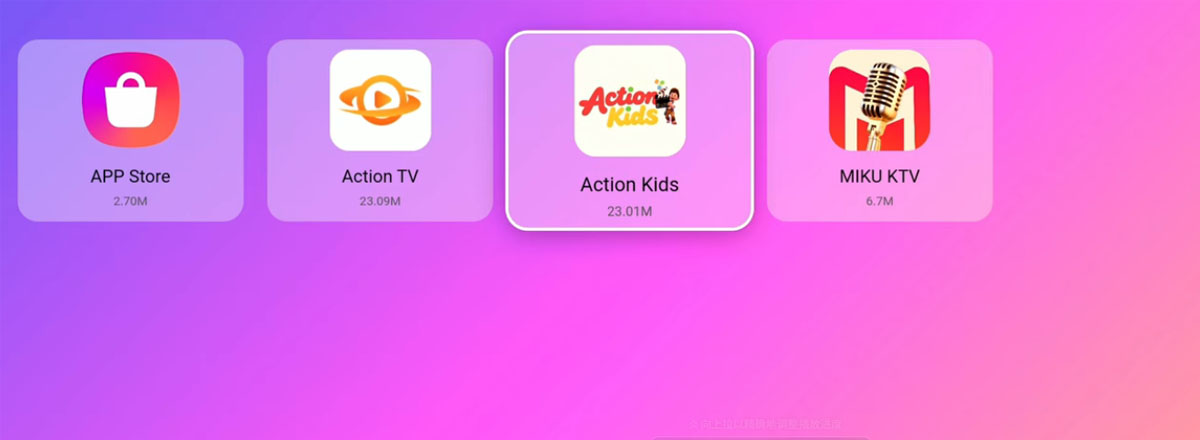
Once inside the GetMax App Store, you can browse and install many different applications based on your interests.
Here are some popular categories users enjoy:
Live TV Apps(Action TV)
Live TV apps provide access to international television channels, including:
- News channels
- Sports broadcasts
- Entertainment channels
- Asian TV channels
- International programming
Many users enjoy watching global content without needing expensive subscriptions.
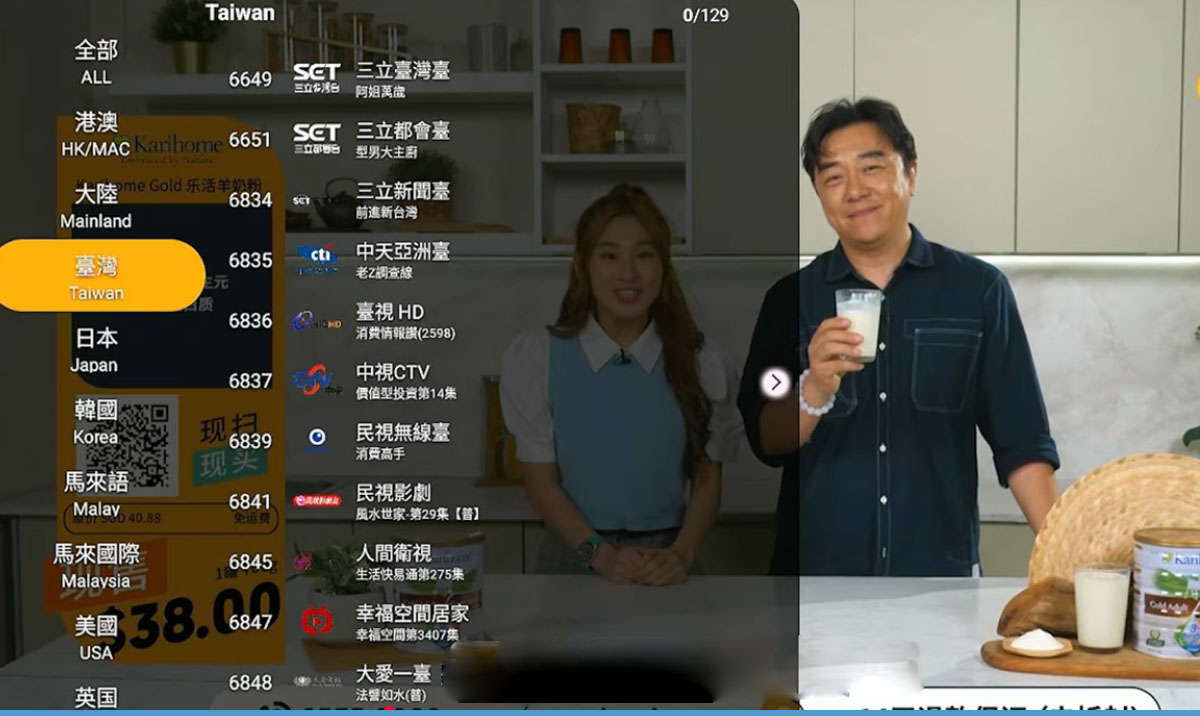
Movie and TV Series Apps
Movie apps allow you to stream:
- Hollywood movies
- Asian dramas
- Classic films
- New TV series
- On-demand entertainment
With the GetMax TV Box, you can enjoy high-definition streaming directly from your living room.
Kids Entertainment Apps(Action Kids)
Families with children can install kid-friendly applications that offer:
- Cartoons
- Educational programs
- Animated movies
- Safe children’s entertainment
These apps are designed with easy navigation and family-friendly content.
Lifestyle and Specialty Apps
Users can also install apps for:
- Music streaming
- Fitness programs
- Cooking shows
- Travel content
- International culture channels
The flexibility of Android TV boxes allows users to personalize their entertainment experience.
Tips for Better Streaming Performance
To get the best experience from your GetMax TV Box, follow these helpful tips:
Use High-Speed Internet
For smooth HD or 4K streaming, a stable high-speed internet connection is recommended.
Keep Apps Updated
Regularly updating apps ensures:
- Better performance
- Improved security
- New features
- Fewer playback issues
Restart the Device Occasionally
Restarting the TV box once in a while helps clear memory and maintain smooth operation.
Organize Your Home Screen
Place your favorite apps on the main screen for quicker access and a cleaner interface.
Why More People Are Switching to Android TV Boxes
Traditional cable TV services continue to become more expensive every year. Meanwhile, Android TV boxes like GetMax offer greater flexibility and more content options at a lower cost.
Users appreciate being able to:
- Watch international channels
- Stream movies anytime
- Customize their viewing experience
- Install apps freely
- Access entertainment from around the world
For many households, the GetMax TV Box has become the perfect all-in-one entertainment solution.
Installing apps on the GetMax TV Box is quick, simple, and beginner-friendly. In just a few easy steps, you can unlock a massive world of entertainment directly on your television.
From live TV and movies to kids’ programming and lifestyle apps, the GetMax TV Box offers something for everyone in the family.
If you’re looking for a smarter way to enjoy home entertainment without the limitations of traditional cable, now is the perfect time to explore what the GetMax TV Box can do.


